Settings
How to Create a Wallet
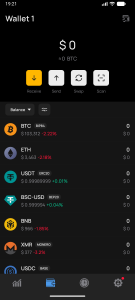
Creating Your First Wallet
Understanding the Importance of the Recovery Phrase
Personalizing and Managing Multiple Wallets
Creating a wallet in Vigor Wallet is quick and easy. The app lets you manage multiple cryptocurrencies — all from one secure and convenient place.
Whether you’re a beginner or an experienced user, this guide will help you set up, secure, and personalize your wallet.
You can access wallet creation and setup features from the Wallets page (the “Wallet” icon in the main menu) or from your personal account.
1. Creating Your First Wallet
Step 1. Download Vigor Wallet
Download the Vigor Wallet app only from official sources:
Vigor Wallet for iOS — [App Store]
Vigor Wallet for Android — [Google Play]
⚠️ Important: Install Vigor Wallet only from official stores to ensure the safety of your funds.
Step 2. Create a New Wallet
Open the Vigor Wallet app.
On the welcome screen, select Create a New Wallet.
(Use the Import option only if you want to restore an existing wallet.)
Set up a PIN code to protect access to the app.
You can skip this step, but without a PIN code, app functionality will be limited.
ℹ️ Note: The PIN code is stored only on your device. The Vigor Wallet team has no access to it and cannot restore or reset it.
If you forget your PIN code, access can only be restored using your 12-word recovery phrase.
After completing these steps, your wallet is ready to use. You can securely send, receive, and manage your crypto assets.
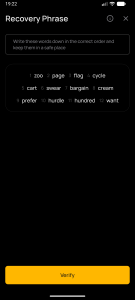
2. The Recovery Phrase — The Foundation of Your Security
During wallet creation, the app will prompt you to save a 12-word recovery phrase.
This step is crucial and must not be skipped.
⚠️ Important: The recovery phrase is the only way to restore access to your wallet.
If your device is lost or stolen, no one will be able to recover your funds.
Only you are the owner and custodian of your cryptocurrency.
How to View and Save the Recovery Phrase
Open the Vigor Wallet mobile app.
Tap the wallet icon at the top of the main screen.
Select the wallet and tap the three vertical dots next to its name.
Choose Manual.
Enter your PIN code (if set) to view the recovery phrase.
Write down the 12 words on paper and keep them in a safe, offline place inaccessible to others.
💡 Tip: Never store the recovery phrase in digital form, take screenshots, or send it via email.
If needed, you can later view or recreate a backup of the phrase in your wallet settings.
3. Personalization and Managing Multiple Wallets
Renaming Wallets
You can assign a custom name to each wallet — useful when managing multiple portfolios or blockchains.
To rename a wallet:
Tap the wallet icon at the top of the main screen.
Select the desired wallet and tap the three dots on the right.
Go to Wallet Settings.
Edit the name and tap Save.
Creating Additional Wallets
On the main screen, tap the wallet icon.
Open the Wallet Management page.
Tap Add Wallet.
Select Create a New Wallet and follow the standard setup process, including backing up your recovery phrase.
Each wallet you create has its own unique 12-word recovery phrase.
Be sure to back up each one separately and store them safely.
✅ Useful Tips
You control your funds. Vigor Wallet is a non-custodial wallet — only you have access to your assets.
Never share your recovery phrase under any circumstances.
Use different wallet names to organize multiple accounts conveniently.
Do not store your recovery phrase on your phone or in the cloud.
Do not take screenshots — write it down on paper and keep it in a secure place.
After setting up your multi-currency Vigor Wallet, you are ready to securely and confidently manage your crypto assets — all in one place.

 DE
DE  RU
RU  UK
UK